
česky | english
NOTA BENE - WORK IN PROGRESS - Your Inputs & Thoughts

To Technology Knowledge Base - To Technology Knowledge Base - Overview
1. Technology Knowledge Base - Client Certificate FAQ
- Client Certificates can be used both for secure login (authentication) and encryption (privacy).
Contents
- 1. Technology Knowledge Base - Client Certificate FAQ
- 2. Overview
- 3. CAcert
- 4. Applications
- 5. Modifying software to use client certificates
-
6. FAQ and Misc - Client Cert Troubleshooting
- My IE is showing error code number "-2146885628" (or similar)
- "Where is my private key? How do I use it on another computer?"
- Renew Client Certs under FF
- Where is the PKCS12 file? - I only have the PEM file that says its for smartcard only
- "Windows does not have enough information to verify this certificate"
- My cert is in the browser but not my email client - what now?
- How to enable Client Cert authentication in your Web-Applications
- I want to use Class3 Cert under older Windows System
- iOS won't let me select CAcert client certificates for e-mail signing / encryption
- 7. How can I use Client Certificates like SSH?
- 8. Further References
- 9. Inputs & Thoughts
2. Overview
Encryption
- Most email and instant messages are unencrypted and thus are sort of like postcards. This means that people with access to the network can read them. That often includes those with access to wireless networks you use, personnel at your ISP, those who run the services you use, governmental authorities and others.
- Your CAcert client certificates can make your use of the Internet more secure by allowing you to create emails and instant messages that are encrypted end-to-end, and by letting you log into web pages in ways that can be more secure than using a password.
Authentication
- Client certificates can also be used to authenticate (log in) the user of a website. This has some advantages as compared to the usual password login:
Save from cracking: X509 certificates are considerably harder to crack than typical passwords.
Save from evil SysOps: Though you usually have to enter the access password to your browser's certificate storage, this password is never sent over the network, not even encrypted! So, as the website's user, you don't have to worry about an evil sysop storing your password unencrypted.
Save from spammers: As the owner of a website accepting only CAcert certificates which have a real name included you don't have to worry about large amounts of accounts being created by spammers. CAcert assures that such certificate are only issued real persons which have official ID documents for the included name.
- You can also sign messages and electronic documents.
3. CAcert
Client-cert-enabled Systems
- Within CAcert the following systems are now client-cert enabled:
URL to click
Name of system
type of usage
comments
software
the main online system for CAcert users
CC only
Can do client-cert login. Click on Certificate Login. "Normal" Password Login without client certs is only possible on www.cacert.org.
CAcert
CAcert's Blog
CC for writing, read is open
Uses client-certs to let you add comments, write posts and so forth. Click on Log in. This makes it spam-free.
CATS - CAcert Automated Testing Service
CC only
Runs our famous AssurerChallenge. When you have passed the challenge, CATS notifies CAcert of your certificate serial number and this account is updated with your PASS mark.
CATS by CAcert
Maillists
CC + passwd
To adjust your subscriptions to email lists.
sympa.org
Sympa Cert LoginVoting system
CC required for voting, read is open
The board uses this system to record board motions and voting.
custom
- All of the above systems are run by CAcert directly. Add Assurer-run systems below:
URL to click
Name of system
type of usage
comments
software
To get your client cert from CAcert
Before the above sites will work, you need to create a client certificate and import it into your web browser.
Log in to the CAcert website via Password Login (or Certificate Login if you already have a client cert) and choose "Client Certificate -> New".
- Select your default email address.
- Select your name if possible. When you have enough assurance points you can include your name in the certificate.
- If you wish to login to CAcert with this certificate, tick the box for that.
Make sure that Sign by class 3 root certificate is selected.
- Select the appropriate hash algorithm.
Select Code Signing and/or Add Single Sign On ID Information if needed.
Open the CSR Generator website in a new tab, and follow the instructions.
- Paste the created CSR into the large box. Accept the CCA and click Next.
- Try it out by going to one of the above sites.
- Do not forget to create a secure backup of your certificate (including your private key).
How to get multiple email addresses into your client cert from CAcert
- Log in to the CAcert website (see Password Login, Certificate Login in previous section)
- Select Email Accounts - View
- Are all Email addresses defined that you want to add to your Client cert?
- If not, add as many Email addresses under Email Accounts - Add to your CAcert account you want to add later into your Client cert
- Verify the Email addresses added. Only veryfied Email addresses can be added into a client cert.
To get someone else's CAcert client cert
- To use for secure mail, S/MIME requires you to get the certificate from each person individually. This is done typically by asking the person to send you a signed email.
See here for some information on Client Certificate KeyServers.
4. Applications
- You can use your Client Certificate in many applications for a lot of purposes. Here are some examples.
Email Clients
Personal EmailCertificates - How to configure and to how to use them.
Web Browser
You can login to any web site that uses OpenID for authentication using your CAcert client ssl certificate and any OpenID software or service that supports SSL Certificates, such as certifi.ca. See OpenID for more on CAcert's evolving approach there.
You can also use a client certificate in your web browser to get directly authenticated directly on some websites. The CATS AssurerChallenge is one such, and this site requires you to have a CAcert client certificate. See above for more sites.
Gotchas
- Using client certificates for login is more secure than using passwords in technical terms, but there are some gotchas:
- The certificates expire every 2 years (for assured members) so you need to be able to login to get a new one.
Certificates (or more precisely the private keys held in your browser) should be backed up. Especially if this is the only way to get access to some site, you will lose access if you experience a corruption on your computer.
Browsers like Firefox are particularly bad in managing multiple certificates. You are better off having one and only one certificate, because the browser can't really at this stage provide a convenient interface for you to whitelist your sites against the right certificate.
- Use of certificates means that you are presenting a viable and validated identity to the site; this means the site can see who you are and store that information. This has some privacy ramifications.
- Web sites are often confused about how to implement client-certs. The truth is that it is not easy because there are bugs in the underlying architectures. Some websites insist on client-certs only, and throw you in a strange place if you haven't got it. Other web-sites try and mix client-cert usage with non-client-cert usage, and this opens up confusion and security weaknesses. There is currently no one good answer.
- For all these reasons you should keep your CAcert password written down in a safe place.
Instant Messaging (IMs)
- Most of the common Instant Messaging Clients for Jabber, MSN, AIM, ICQ, etc. don't encrypt your messages by default. But you can sometimes encrypt your instant messages.
- Examples
- S/MIME (CAcert Certificate) - planned for Jabber; supposed to work with AIM
- GPG/PGP - psi Jabber Client; kopete
OTR - Pidgin (formerly known as Gaim); adium; Jabber Proxies
Note: there were reports that AOL asserted the right to use your AIM messages for any purpose, but they say that was a misinterpretation: http://www.snopes.com/computer/internet/aim.asp
OpenSSH
- Using your CAcert client certificate to login via SSH (on Linux):
- generate a client certificate
- export it as PKCS12 file ( e.g. to /home/user/MyCert.P12 )
- convert it to PEM ( run openssl pkcs12 -in /home/user/MyCert.P12 -out /home/user/.ssh/id_rsa )
- secure the PEM-file ( chmod 600 /home/user/.ssh/id_rsa )
- create a ssh-usable public key ( run ssh-keygen -y )
- insert the output ( ssh-rsa .... ) to .ssh/authorized_keys2 on every server you wish to use this key
Encryption Applications
 Note: CAcert does not provide support for the following products; we only issue the certs!
 Open-source multi-platform package: Cryptonit
Signing Documents
OpenOffice up from version 2.0 is able to sign documents. Please read the wiki for OpenOffice.
- PDF Signing in brief
- PDF Documents signing
Adobe Reader XI: menu Fill and Sign -> Certificate managing -> Sign with certificate; dialog window Sign the document:
- Select the certificate to sign with
- Option Lock the document after signing
- "Sign" button
SVN
See Jan's SVN Client Cert Guide, which is a small step by step guide on how to setup client certificates with:
- OpenSSL, GNUTLS or Firefox for certificate creation
- Subversion command line client, TortoiseSVN or Eclipse as clients
Also note, local sysadm notes, and there should be some notes on the BirdShack wiki (when it comes back online).
OpenSSL
5. Modifying software to use client certificates
Essentially, it isn't easy to use client-certs unless the software at the server side actually takes them and uses them. This means that we need to get a lot of these servers up and running, and document the methods so others can follow. This section is an index into known experiences here. You can help: set your system up to use client-certs, and document how it went!
OpenID
If your web application or web site supports OpenID, people can choose to use an OpenID server that supports the use of their CAcert client certificates when using your web application or web site. See OpenID for providers and info.
Apache
- See
the Apache Tutorial by DanielBlack on how to set up Apache with client certs.
the dotProject for an alternate view by MarkusWarg
phpBB (ver 3) discussion forum
- You can let your discussion forum users to log in using certificates. Addition to the original code is simple (please ask the phpBB community to make this a default feature) Add following code to your authority plugin (by default includes/auth/auth_db.php)
function autologin_db()
{
        global $db, $config;
        if ($_SERVER[SSL_CLIENT_VERIFY] == "SUCCESS")
        {
                $sql = "SELECT * FROM " . USERS_TABLE . "
                  WHERE user_email = '" . $db->sql_escape($_SERVER[SSL_CLIENT_S_DN_Email]) . "'";
                $result = $db->sql_query($sql);
                $row = $db->sql_fetchrow($result);
                $db->sql_freeresult($result);
                if ($row)
                {
                        return $row;
                }
        }
        return array();
}
Microsoft Internet Information Server 8 on Windows Server 2012
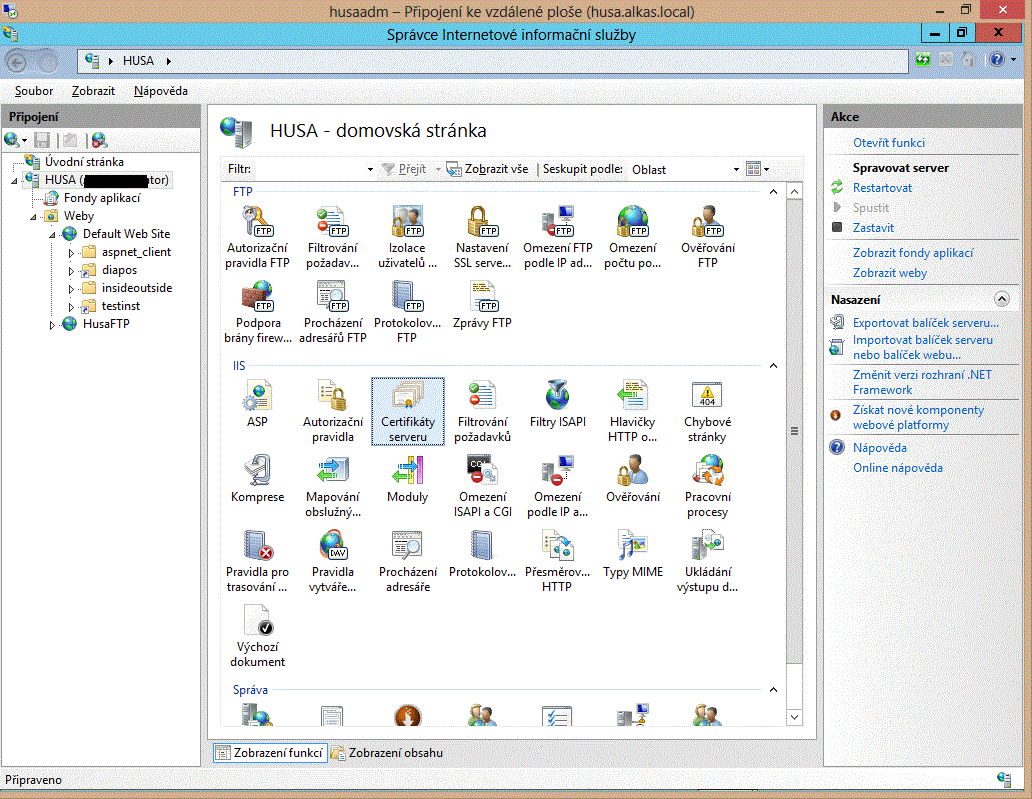
[Apologize for the pictures taken from Czech localized server / IIS manager. An English version was not available.]
Presume the Windows Server 2012 with Microsoft Internet Information Server ver 8 installed.
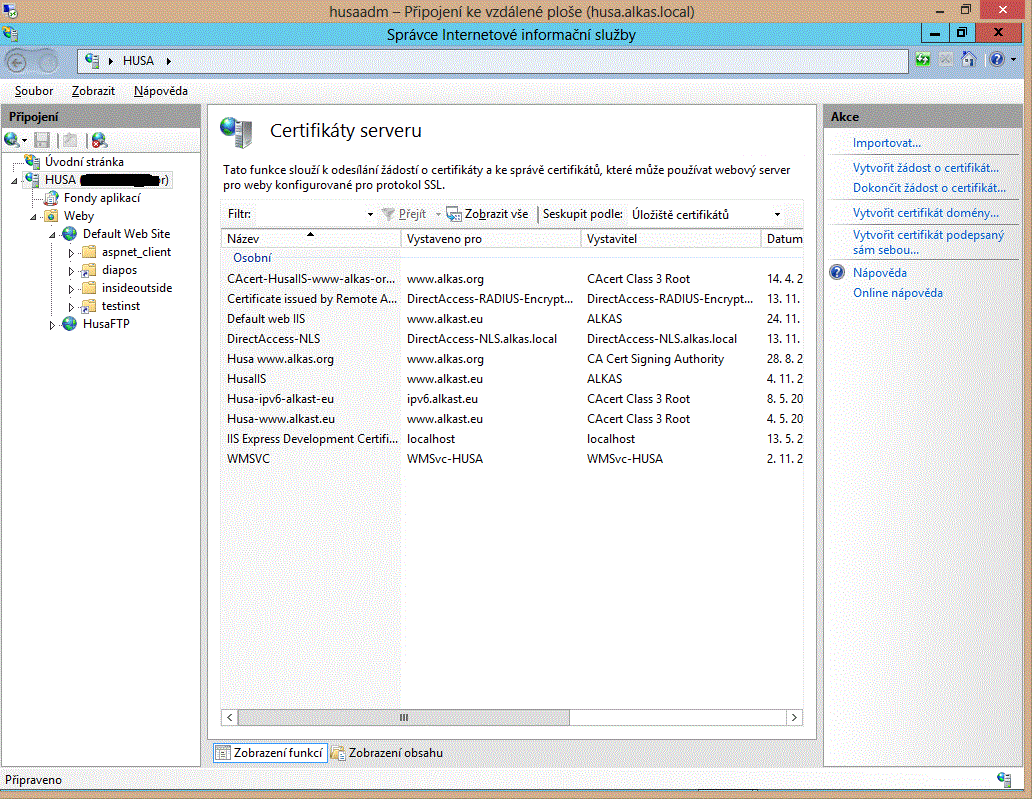
The first step is to install the CAcert server certificate and certainly also Cacert root certificates onto the server. Server certificates are managed from the web server subtree item in the left pane of the IIS8 Management tool, near the top. After selecting this item the features icons appear in the middle pane. Double click the "Server Certificates" icon. You can then create a CSR in the right pane or actions menu, submit it to CAcert for signing (outside the IIS8 Manager), and then (in the IIS8 Manager again) complete the installation of the certificate received by its connecting with the private key you have generated when making the CSR.
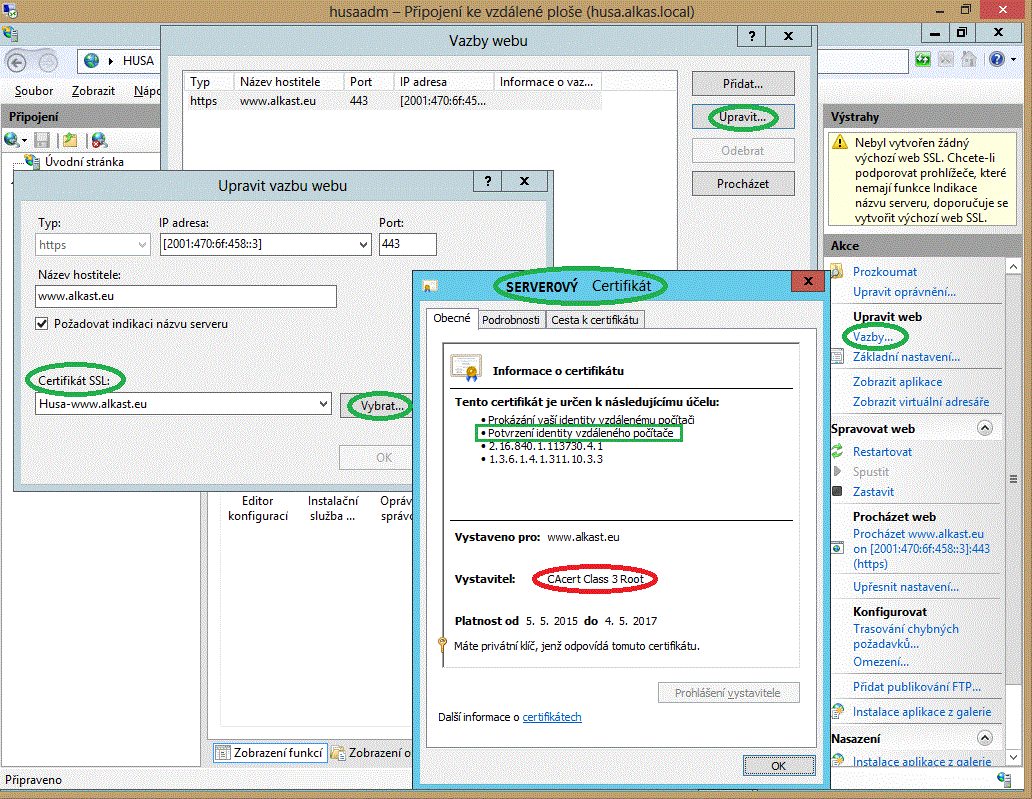
Standard port for the SSL connection is #443. Website operating on the IIS8 server needs to have defined the following binding: HTTPS - server certificate - port (443). You can set this in the properties of the web root item you wish to run, in the "Bindings..." menu. If you want your website accessible with the protocole HTTPS only, define only the binding https (to the standard port 443) and not http (to the standard port 80). Assign the CAcert issued server certificate.
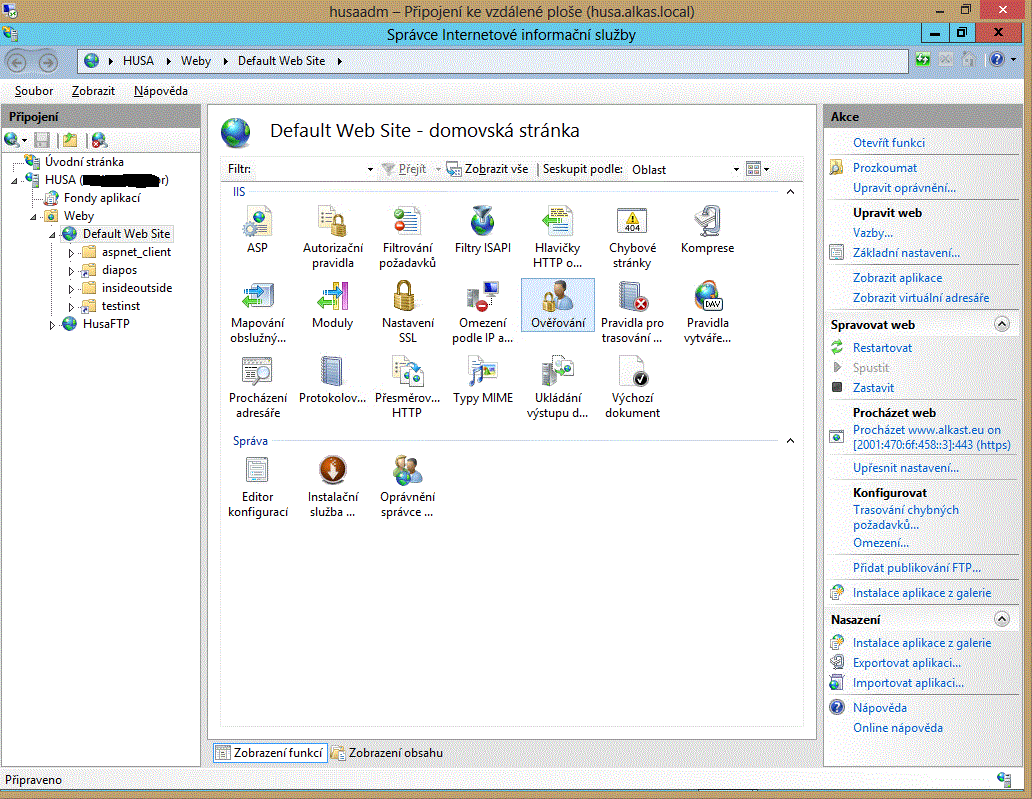
If you wish to permit an access to your website/virtual folder for (in this case) CAcert certificate owners only, who have no account in your system and are thus basically anonymous, you have to permit anonymous access to the websites/virtual folders intended for them. You can do this in the item (under the icon) "Authentication". The (CAcert) client certificate will be sufficient for their successful access.
If you wish to give an access for users, who:
- have their client certificate (in this case) Cacert, and at the same time
- have their user account in your system,
it is not an anonymous access anymore. So the anonymous access should be forbidden both for the whole website and for its virtual folders intended for those users. Thus, prohibit the anonymous access to such websites/virtual folders via the "Authentication" item, and permit the "Windows authentication" only. Those users will have to provide a client certificate, and then login with their username and password.
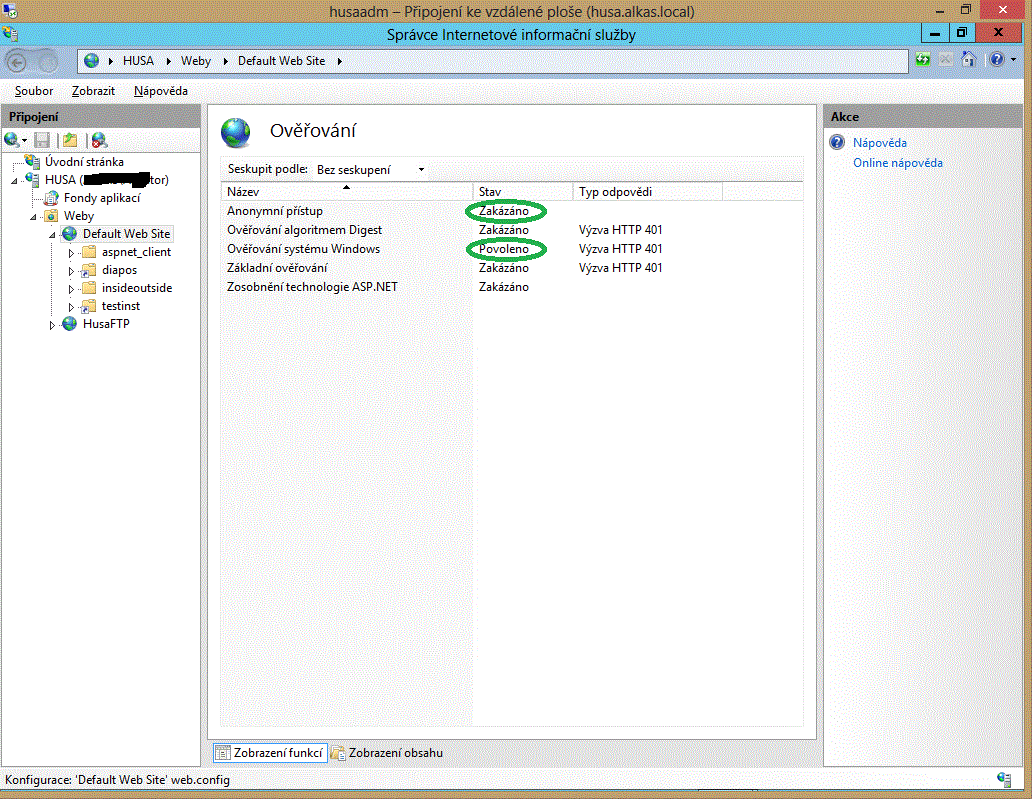
Last step: open the "SSL settings" icon both in the web root item and its directories items, where:
- mark the "SSL protocol required" box, and
- select "Require" client certificates on the radio buttons.
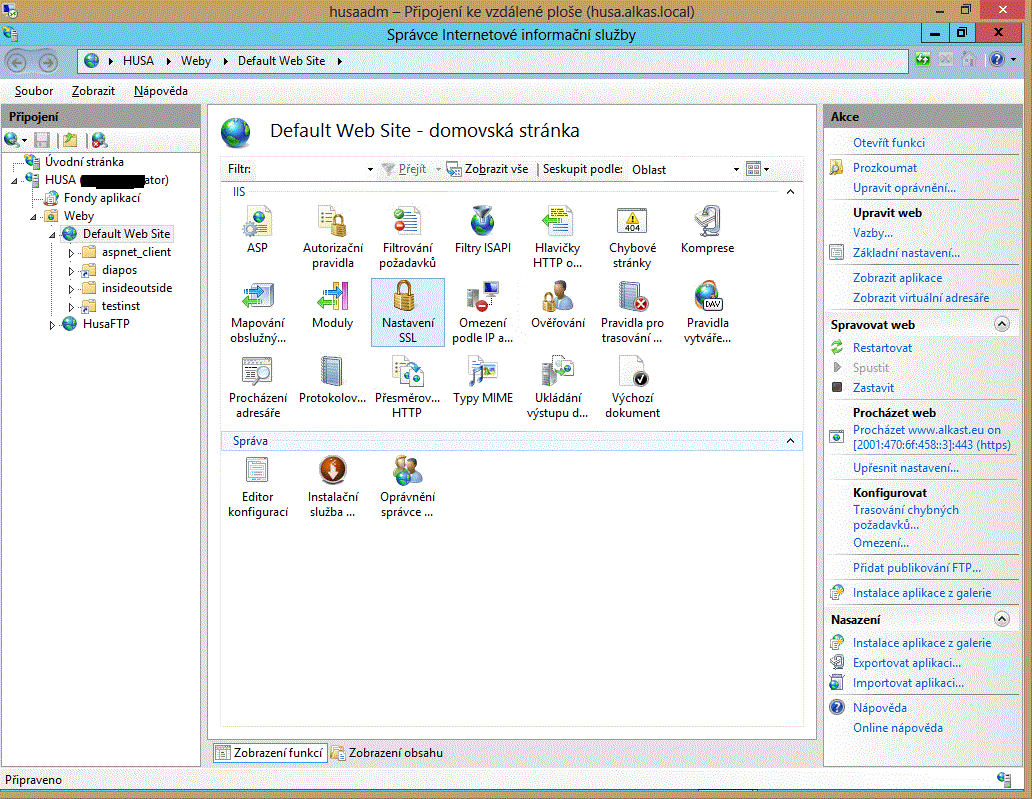
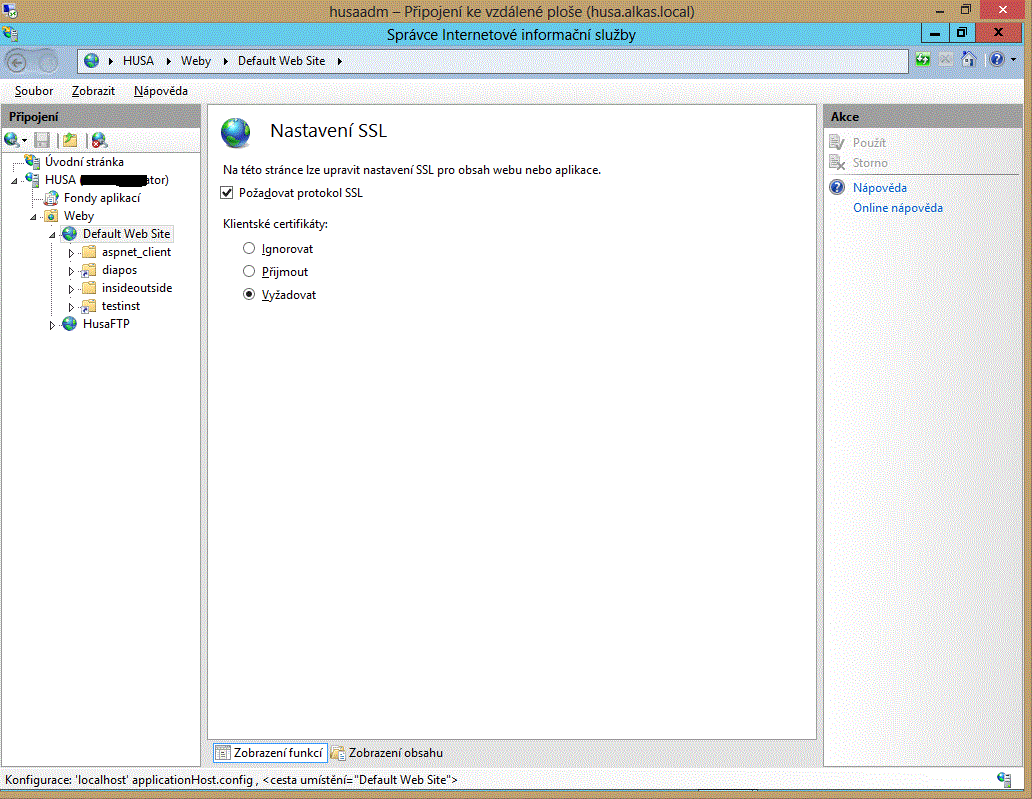
The web server is ready now. If you access it as an user with a client web browser which:
- Will use the https protocol,
- Have the CAcert root certificates installed,
- Your client certificate issued by CAcert is valid, not expired (you may have several certificates),
the server will request the valid certificate(s), with which the client may submit (certificates issued by the same CA - in this case CAcert - which has issued used server certificate, too). A browser dialog window appears, where you have to select and/or confirm your relevant client certificate. If you select a certificate issued by the same CA as the server certificate of the web server, and if this user client certificate is valid, and if the list of its purposes includes the login with this certificate (show your identity to the remote computer), then you will successfully login to this web server.
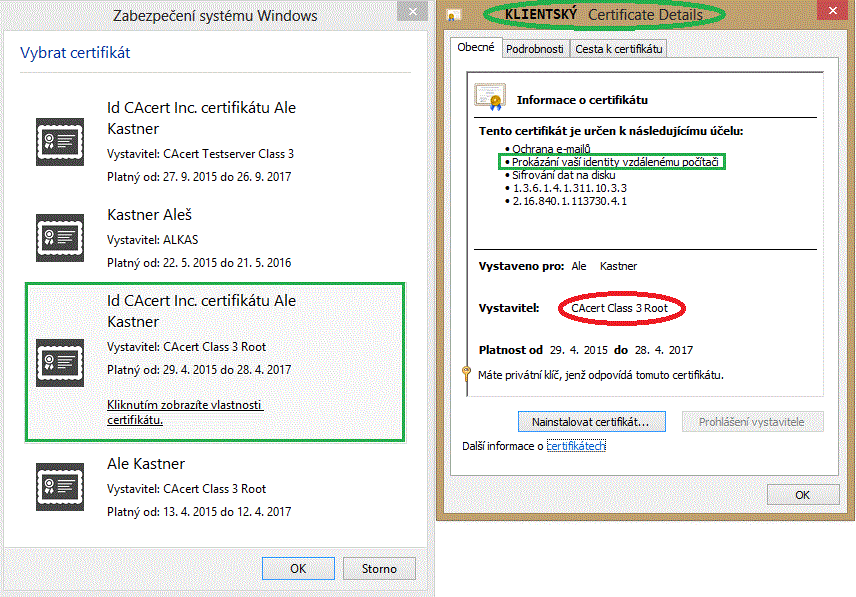
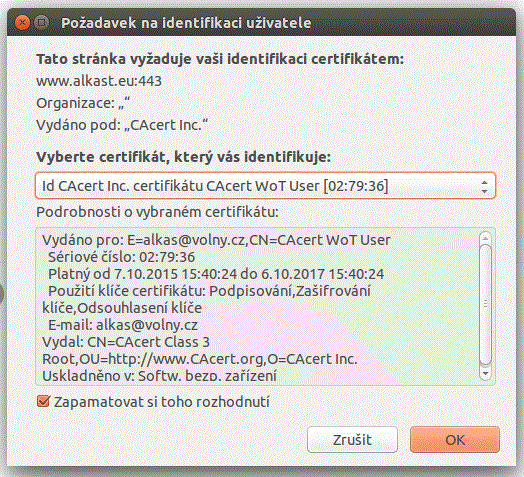
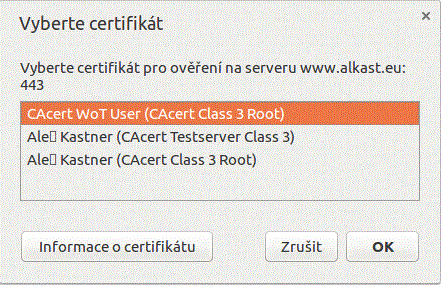
In all other cases an error message will be displayed - the access to the server is denied.

Trying to access with the HTTP protocol (without the SSL) an error message appears - this page cannot be displayed. The reason is, that the "http - port 80" binding (voluntarily) does not exist.
Enable Client Certs for .project
If you are interested in seeing how to make the Open Source Project Management tool .project (http://www.dotproject.net) client cert aware, please have a look at Technology Knowledge Base dotProject.
6. FAQ and Misc - Client Cert Troubleshooting
My IE is showing error code number "-2146885628" (or similar)
- Nearly all error messages related to certificate installs are the result of people not having a matching private key, or for the cert logins, not being able to match a key/certificate valid for the CAs acceptable.
Basically people have reinstalled things on their computer, or are using a different browser and don't realize that we don't keep copies of private keys they can then later download along with the certificate from our website.
"Where is my private key? How do I use it on another computer?"
- Your private key is generated by your browser, *IN* your browser when you request a new cert from CAcert. That way CAcert never has your private key in its possession. The implication for you is that you must be on the same machine using the same browser that you used to request the cert initially, when needing to access your private key. So don't forget if it was your "work" machine vs. your "home" machine.
- Your keys are contained in something called the key "store". You may export public/private keypairs from your store to a file, and optionally (but highly recommended!) secure them with a passphrase. This is typically done by going into the "Manage Certificates" section of your browser (i.e., Firefox), and then performing a "Backup" of your key. This will create a file with with a .P12 or .PFX suffix.
- You may then go into another application which uses client certificates (e.g., Thunderbird, IM, etc.,), and use "Manage Certificates" to "Import" the .P12 file previously created. After providing the correct passphrase, your public/private keypairs will now be available in the new application.
 it is very interesting to generate a keypair and your CAcert cert on a smartcard. That's wise and a good way to protect your keys. But don't forget, you'll never be able to export the private key
  see CryptoHardware
Renew Client Certs under FF
Today I had to renew my active client cert cc9f, so I did what to do
- Going to the www.cacert.org website
Client Cert login with my still valid client cert cc9f
Menu Client Certs - Renew
Selecting the cc9f and clicking the button Renew
- So far so good, the website still worked and website presented me a "IE5 installation" button and a block of cert code in full ascii
Clicking the IE5 installation button doesn't work, copy and paste the ascii code cert into an ascii text file, name it signedKeyfile.crt (later named -> new-pub-signed-11e7e.cer) and trying an import into the FF keystore doesn't work
The downloaded signed key doesn't include the private key!!!
- and Firefox didn't let me import the signed key easily
Required steps to get your renewed key working: (for better reference I name the "old" key cc9f and the new key 11e7e, also a reference if its the private or public key)
export the private key from the "old", still existing and still valid, unrevoked client cert cc9f in the FF keystore
save as pkcs12 -> step1-export-priv-pub-key-cc9f.p12
- Convert with openssl a PKCS#12 file (.pfx .p12) containing a private key and certificates to PEM
- You can add -nocerts to only output the private key or add -nokeys to only output the certificates.
openssl pkcs12 -in step1-export-priv-pub-key-cc9f.p12 -out step2-convert-priv-pub-to-priv-key-cc9f.pem -nodes -nocerts
The result is the file step2-convert-priv-pub-to-priv-key-cc9f.pem that includes only the private key part from the old certificate cc9f that we have to marriage in next step with the new (renewed) signed public key
- You can add -nocerts to only output the private key or add -nokeys to only output the certificates.
- Merge priv + pub to new pfx key
openssl pkcs12 -export -out my-11e7e-Priv-Pub.pfx -inkey step2-convert-priv-pub-to-priv-key-cc9f.pem -in new-pub-signed-11e7e.cer -name "key11e7e"
The resulting output file is my-11e7e-Priv-Pub.pfx that includes the private keypart from previous priv/public key cc9f and the public key(part) of the renewed, signed key with new serial number (here 11e7e)
The new "merged" private + public key my-11e7e-Priv-Pub.pfx you now can use for import back into your browser, email clients and other programs
Helpful link with useful description and several openssl commands listed: How to Convert certificates between PEM, DER, P7B/PKCS#7, PFX/PKCS#12
Where is the PKCS12 file? - I only have the PEM file that says its for smartcard only
openssl pkcs12 -export -in cert.pem -inkey private.key -certfile /etc/ssl/certs/root.pem -name "Bob's CAcert" -out cert.p12
"Windows does not have enough information to verify this certificate"
- [Q] I am using win2000 and outlook from office 2000. I installed my certificate using IE and went to outlook - options - security - settings to choose the cert that I installed. The trouble I'm having is that when I try to send a signed and encrypted E-mail, I get an error that the cert is not valid. When viewing the cert in outlook, it states that "windows does not have enough information to verify this certificate"
[A] It sounds like you might be missing the CAcert Root certificate and/or you have it, but have not "trusted" it yet. You can pick up a copy at: https://www.cacert.org/index.php?id=3
- Once it is installed, check to see if it is trusted. That will hopefully solve the error you're getting with your personal cert.
- [A] Each email address that you are sending too in outlook needs to have a public certificate assoicated with it. To get that certificate for the person you are trying to send an encrypted message to have them send a signed email to you.
- When you recieve that email right click on the senders address (not the email itself). Select add to contacts. This will install the public certificate for you to use when sending emails. You can see that certificate by selecting the certificates tab on the top of your contact information.
- If this person is already in your contact list then do the following:
- Right click the senders address (not the email itself). Select add to contacts. Select the certificates tab. highlight the certificate and select export. Change the name to something you will recognize and select a location you will remember, enter a password and save. Close the new contact and do not save the changes (this removes the duplicate contact). Right click the senders address (by now you should recoginize the pattern) select lookup contact. select the certificates tab and import the certificate using the path, name and password you just entered. You should be able to send encrypted messages to that address now.
My cert is in the browser but not my email client - what now?
- [Q] I tried to install my e-mail cert into Mozilla Thunderbird (the latest as of today) and somehow could not sign a message. Thunderbird tells me that I first have to set up my certificates (hey - I did that! and I verified that the cert is there, including the CA root) and if I want to learn how to do that - sure I say yes - the dialog goes away and nothing happens.
[A] You need to export the certificate and private key from your browser; just importing the certificate is only half the information needed to encrypt/sign emails. CAcert never gets (or even wants) a copy of your private key. (See topic 3.1 for more details)
How to enable Client Cert authentication in your Web-Applications
There is another PHP example including details on Apache configuration.
- Unfortunately client authentication does not seem to work when SSLCACertificatePath option in Apache2 is used. This seems to be default configuration for example in Ubuntu. To fix it:
- change
- SSLCACertificatePath /etc/ssl/certs/
- to
- SSLCACertificateFile /etc/ssl/certs/ca-certificates.crt
- in your apache configuration files and it works again..
If you need a CA-Bundle for your webserver, you can get one, which has CAcert included here: http://www2.futureware.at/svn/sourcerer/CAcert/ca-bundle.zip
Unanswered question: How do I simply add CAcert to my existing ca-bundle? Answer: Get the CAcert root certificates (both Class1 and Class3), open them in a Text-Editor, and copy&paste them into the ca-bundle, for example at the end of the file.
For the following example, you have to set SSLVerify to "optional" or "required" in your Apache configuration. "required" forces the browser to show a certificate, and does not give access to the Vhost (or directory), unless the client presents a valid certificate. "optional" accepts certificates optionally, so the client can also access the vhost without a certificate. When you set SSLOptions to +CompatEnvVars +StdEnvVars then mod_ssl will put all interesting details into the environment variables, which are easily accessible from any programming language:
$ca="";
if($ENV{'SSL_CLIENT_VERIFY'} and $ENV{'SSL_CLIENT_VERIFY'} eq "SUCCESS")
{
  if($ENV{SSL_CLIENT_I_DN_OU} eq "http://www.cacert.org")
  {
    $ca="CAcert";
  }
  if($ca and $ENV{SSL_CLIENT_S_DN_Email})
  {
    $auth="email+clientzert";
    $authuser=$ENV{SSL_CLIENT_S_DN_CN};
    $authemail=$ENV{SSL_CLIENT_S_DN_Email};
    print "Welcome $ENV{SSL_CLIENT_S_DN_CN} (<a href=\"mailto:$ENV{SSL_CLIENT_S_DN_Email}\">)!<br/>";
  }
I want to use Class3 Cert under older Windows System
If you experiences problems using the new Class3 Subroot and creating class3 client certificates, probably your older Windows system (Windows XP, Windows 2003) does not have the patch Microsoft Base Smart Card Crypto Provider (KB909520) installed.
- KB909520 installs support for sha256 and other crypto providers like AES128, AES192, AES256 and more
Further infos about crypto providers under Windows read MSDN library article CryptoAPI Cryptographic Service Providers
iOS won't let me select CAcert client certificates for e-mail signing / encryption
I was unable to select client certificates signed by CAcert for S/MIME signing and encrypting of e-mails. Multiple certificates (generated using IE 10.0.10 and Opera Next 17.0; including or excluding name; class 1 or class 3) had been created and installed by various means including the iPhone Configuration Utility method. This method is similar to the method described here, which didn't work for me as the configuration utility did not let me choose any certificates in steps 30 and 31.
- In a new approach, I used Firefox 24.0 to generate the certificate and exported a .p12-file from its certificate manager. After transfering this file to my iPhone, I was able to install the certificate and utilize it to sign and encrypt e-mails
7. How can I use Client Certificates like SSH?
- For your Apache configuration:
SSLOptions +ExportCertData +CompatEnvVars +StdEnvVars
SSLVerify optional_no_ca
- The application:
$ca="";
if($ENV{'SSL_CLIENT_VERIFY'} and $ENV{'SSL_CLIENT_VERIFY'} eq "SUCCESS")
{
  echo $ENV{SSL_CLIENT_KEY};
}
8. Further References
the Apache Tutorial by DanielBlack on how to set up Apache with client certs.
the dotProject for an alternate view by MarkusWarg
Iang's Lightning Talk on Client Certificates and SSO - the Old-New Thing for Fosdem 2010.
Slides at ODP source and PDF output.
youTube video of talk.
the Eccentric Project by Guido Witmond uses client-certs in a website-as-own-CA configuration to authenticate all members to all other members on a psuedonymous basis.
9. Inputs & Thoughts
YYYYMMDD-YourName
Text / Your Statements, thoughts and e-mail snippets, Please
YYYYMMDD-YourName
Text / Your Statements, thoughts and e-mail snippets, Please