
česky | english
NOTA BENE - WORK IN PROGRESS - Your Inputs & Thoughts

Email Certificates
FAQ
For more details and a client cert FAQ see the ClientCerts page.
A bit of background knowledge
If Alice wants to send Bob an encrypted mail she needs the public key of Bob.
The S/MIME-protocol, which is used by most email clients as the standard protocol, uses signed mails to distribute public keys. Every S/MIME signature contains the complete certificate, including the public key of the signer.
So to do encrypted communication Alice first has to get an email certificate for herself and send Bob a signed message. Bob's mailer usually automatically extracts the certificate from the signature and stores it in its certificate database. Now Bob has the option to send Alice an encrypted mail, even if he has no certificate for his mailer!
But usually Bob should also get his own certificate, otherwise encryption can only be used for one direction of message transfer.
Getting a personal email client cert
Simple way: Use a browser
Attention - 20230515
|
 The following text is thus obsolete until the paragraph "The manual way:..."
Using this method, your private and public keys will automatically be generated by your browser and the public key will be sent to CAcert for signing. Your private key is never transmitted over the network (it stays in your browser's secure storage but can be exported from there afterwards).
Mozilla et al.
- To make your certificate exportable, it is recommended to use Netscape/Mozilla/Firefox web browser when creating the certificate.
Make sure you get 50 or more assurer points, so that you can generate a certificate with your name in it. Login to the CAcert.org website with your e-mail address and .password and click on the client certificate menu.
Click on New to generate a new client certificate. Check the box for the e-mail address(es) that you want to use the certificate with, and make choose the Display .Name that suits you best. Then click Next. In the next page you get a form where you can choose two different certificate strengths. Click on Generate .Certificate and wait until you see the page Installing your certificate.
Select Edit/Preferences in your browser (depending on whether you use Netscape/Mozilla/Firefox on Windows or Unix platforms, the name of the menu can also be .Tools/Options or ......). Go to Advanced/Security/Certificates/Manage certificates. You'll now have a certificate under the tab Your certificates. Backup this
.certificate to disk, which means, saving it in PKCS12 format (.p12 file extension).
Internet Explorer
The way to generate a key and certificate is almost the same with Internet Explorer, it just looks a bit different.
WARNING If you are a using Windows + IE greater than Vista (Windows 7, 2k8, 2k8 R2) the ActiveX Plugin is broken at the moment.
- Have a look at
- If asked about the security level usually medium security is advisable, otherwise you'll have to enter a password every time your certificate is used. This may be .tolerable for an email certificate, but you'll probably hate it for a certificate used for browser authentiation, like logging in to CAcert.
- After the procedure is complete the certificate and private key is in window's certificate storage and can be used by some other programms like Outlook.
If you want to create a PKCS12 file to use it in Thunderbird this is the procedure:
- Start the command prompt or open the "Run..." dialog of explorer
- Type "mmc" to start the Management console
Click File->Add/Remove Snap-In
- Click "Add" and select "Certificates" and once more "Add"
- Select "My user account" and "Finish"
- Close all those open Dialogs with "Close" or "OK"
Open Console Root->Certificates - Current User -> Personal -> Certificates
- There all your certificates should be listed.
Select one by right clicking it and choose "All Tasks->Export..."
- If asked tell the computer that you want to include the private key
- When asked about the export format:
- check to include all certificates in the certificate path
- DO NOT check "Improved security..."
- If you like you may delete the key after export
- Then you have to enter a password (twice, as usual) to protect the private key file and choose a filename. The result is a PKCS12 file, fit for import in every program that supports a minimum standard.
N.B.: You may also use the Certificates console to import a PKCS12 file created otherwise for use in IE or Outlook. Give it a try, it's easy!
The manual way: Create key locally (using OpenSSL) and get certificate with CSR
The steps are similiar to the procedure described above, where your browser generates the key pair for you. However, if your browser doesn't support automatic key generation (or you don't trust your browser), you can always create the key pair manually. Before logging in to CAcert.org you have to generate your key and prepare a certificate signing request (CSR) you present at the stage client certificate / New.
These are the needed steps in order:
- Generate the key (may be a part of the next step)
Create the CSR - Certificate Signing Request
Paste the CSR in the Generate Certificate form on CAcert.org
Choose options (not sure whether "Enable certificate login with this certificate" is respected by the server, or something else must be done to prevent creation of a certificate which allows login) Click on Generate Certificate- Save the certificate to a file, or install it in your browser (but more must be done to actually use the key resp. certificate, because the server response doesn't contain the private key part!)
- Assemble the certificate in PKCS12 format (.p12 file extension) which includes the private key part and can be imported in web browsers like Firefox and email application.
One possible way to accomplish this is the following:
Step_1&2: Using 4096 as the length of your key (in bits), issue the following command:
openssl req -nodes -newkey rsa:4096 -keyout my.key -out my.csr
Fill out the two fields Common Name and Email Address (although that might be unnecessary?) and leave all other blank. After that the private key is in file private.key (note: not protected by a passphrase - this can only be done using OpenSSL's rsa command), and the key signing request including the public part in server.csr .
Step_3: Log into the CAcert.org website and use the menu client certificate | New. Check Show advanced options: to show the input field Optional Client CSR. Paste the complete contents of the file my.csr (from Step_1&2) into the Optional Client CSR .Then check the other options and finally click on Generate Certificate.
Step_4: Save the presented response (which is a new signed certificate) into a new file named my.crt (use Copy/Paste). The button Install Your Certificate may or may NOT work in Firefox.
- Step_5: To prepare a PKCS12 file, including the root certificate of the CA use the following command:
openssl pkcs12 -export -in my.crt -inkey my.key -in root.pem -out my.p12
- As of 2011-02-19 with recent Firefox/openssl it seems that you don't need to include the CA cert in the last step, so:
openssl pkcs12 -export -in my.crt -inkey my.key -out my.p12
Where:
my.key: contains the private key (from Step_1&2)
my.crt: the server-generated certificate (from Step_3)
root.pem: the CAcert root certificate (Get this from CAcert.org from the menu Root Certificate, or probably you installed it on your PC already: Then you can export it from the local key store (OS-dependent). If you download it from CAcert.org then choose either Class 1 or Class 3 PKI key dependend on your signing option (or both, then include 2 key files with an extra -in option). The formats Text or PEM should be ok.)
Now the PKCS12 certificate you can work with (which you can keep in a safe place as your backup copy) can be created in the file my.p12 (or choose another name) with this command:
Import the resulting file to Mozilla, Thunderbird, Outlook etc. At the same time this is your backup copy (which you should move to a safe place).
You can safely delete my.csr, my.crt and my.key since they are "merged" into my.p12 now.
Mozilla Thunderbird
Installing the certificate
Tools/Options/Privacy/Security (Thunderbird 1.5) or Tools/Options/Advanced/Certificates (Thunderbird 1.x). In Thunderbird 2.0, use Edit/Preferences to bring up the "Thunderbird Preferences" window followed by Advanced/Certificates.
View Certificates (Thunderbird 1.5 or 2.0) or Manage Certificates (Thunderbird 1.x)
Import
- Select the CAcert PKCS12 certificate (with .p12 extension)
- Choose a passphrase for the Thunderbird local certificate store (choose with care and don't forget!)
- Type the passphrase with which you protected the .p12 certificate
Manage Certificates
Select Authorities (in the Certificate Manager window of Thunderbird 2.0)
Find and Edit the Root CA / CA Cert Signing Authority
Select at least the setting This certificate can identify mail users
Go to Tools/Account Settings (Thunderbird 1.5) or Edit/Account Settings (Thunderbird 2.0) and choose the account for which you want to user your certificate
Choose Security and click Select in the Digitally Signing part of the configuration screen
- You can now choose your CAcert certificate
The certificate will also automatically be chosen as the certificate to Encrypt and decrypt messages sent to you
Note: If you are adding another person's public certificate and it doesn't import in the Other People's tab, go to the Websites tab and import it there. It should still work correctly.
For a more detailed HOWTO, see ../ThunderBird
Using the certificate to sign/decrypt e-mail messages
Write a new message
Before sending the message, click on the Security drop-down menu and select Digitally sign this message
- Send the message. You'll be asked to type the passphrase that you used to protect your Thunderbird local certificate store.
Mutt
Read the instructions from S/MIME for Mutt
Or have a look at Mutt smime-notes.txt
Download the CAcert root certificate and issue the command smime_keys add_root root_X0F.crt
Mutt should have been shipped with an smime.rc file ( /usr/share/doc/mutt/examples/smime.rc under Debian). Copy the contents into your muttrc and replace the value from set smime_default_key with your own key id
Installing certificates of your counterparts
Extracting certificate form a smime-signed-e-mail: Ctrl-k (unfortunately some mutt smime implementations don't work.) Here a possible workaround:
- Save whole SMIME-SIGNED-E-MAIL
- use your favorite shell:
openssl smime -verify -in SMIME-SIGNED-E-MAIL -noverify -pk7out > SMIME-SIGNED-E-MAIL.pk7
openssl pkcs7 -print_certs -in SMIME-SIGNED-E-MAIL.pk7 > SMIME-SIGNED-E-MAIL.pem
openssl x509 -in SMIME-SIGNED-E-MAIL.pem -noout -hash
cp SMIME-SIGNED-E-MAIL.pem ~/.smime/certificates/$(openssl x509 -in SMIME-SIGNED-E-MAIL.pem -noout -hash)".0"
echo $(openssl x509 -in SMIME-SIGNED-E-MAIL.pem -noout -email) $(openssl x509 -in SMIME-SIGNED-E-MAIL.pem -noout -hash)".0" ALIAS >> ~/.smime/certificates/.index
Using the certificate to sign/encrypt e-mail messages
- Compose your e-mail
After composing shift-S: S/MIME (e)ncrypt, (s)ign, encrypt (w)ith, sign (a)s, * (b)oth, or (c)lear?
Press y to send: Enter keyID for <e-mail@anywhere.com>:
Press Enter and select appropriate key
MS Outlook
With MS Outlook, you can use your certificate to sign e-mail messages you send out and to decrypt e-mail messages sent to you. Follow the instructions in the above chapter Getting a personal e-mail certificate. Double-click the .p12 file that you have saved to disk, to install your certificate in de MS Windows certificate store. Your certificate is now available in all MS products that support S/MIME.
You can also use Outlook to encrypt a message that you send to someone with a CAcert certificate. First you will need to install the other person's certificate in your client. The easy way to do this is to have that person send you a signed e-mail message and verify that the certificate is correct (e.g. by checking the fingerprint via telephone or other direct contact with the other person). Once you have received that signed message and verified the certificate, it will be automatically stored in the MS Windows certificate store.
Outlook 2007 Installation
- This has been written as addendum for Outlook 2007 users - if you are one of them please follow these steps please to start.
- Once you have your Digital Certificate in the Windows certificate store, you should open Outlook 2007.
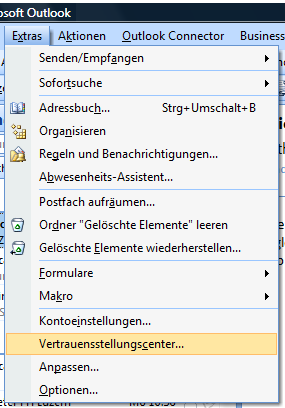
- Once Outlook is opened, click on Tools at the top menu bar.
- Select Trust Center at the bottom of the menu that just opened.
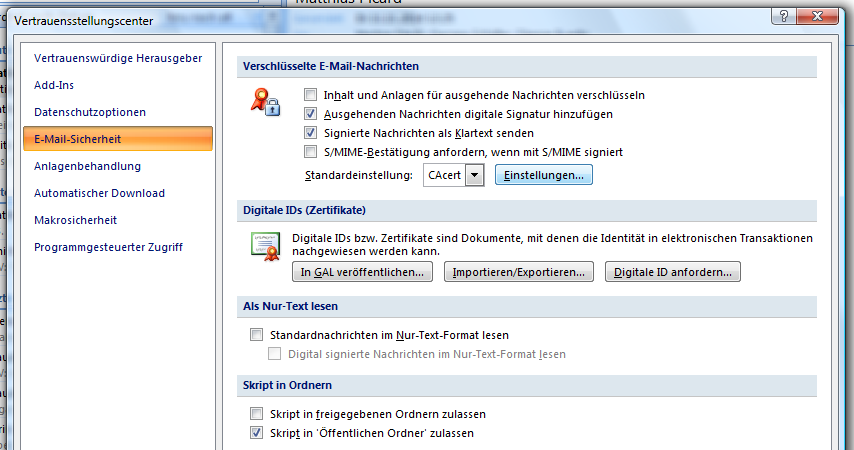
A window with the title, "Trust Center" will appear. On the left hand side you should see all selectable options. Click on the E-mail Security option on the left hand pane.
- Upon clicking on the E-mail Security tab, in the right-hand pane, you will see a drop down field next to Default Settings. Next to this field will be a Settings button. Click on this Settings button.
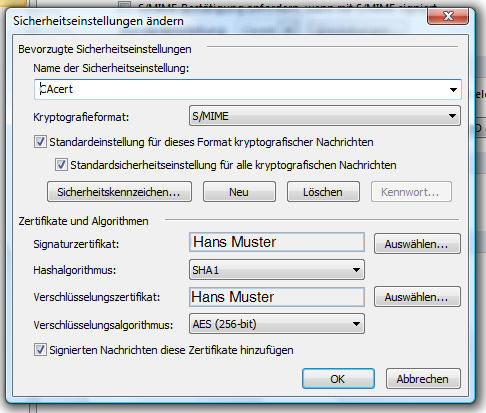
- A new window will appear named, "Change Security Settings". In this window, you will see two buttons towards the bottom that both say Choose.
Outlook specific instructions on how to sign/decrypt/encrypt
When you receive the signed email right click on the senders address (not the email itself). Select add to contacts. This will install the public certificate for you to use when sending emails. You can see that certificate by selecting the certificates tab on the top of your contact information.
If this person is already in your contact list then do the following:
Right click the senders address (not the email itself). Select add to contacts. Select the certificates tab. highlight the certificate and select export. change the name to something you will recognize and select a location you will remember, enter a password and save. Close the new contact and do not save the changes (this removes the duplicate contact). Right click the senders address (by now you should recognize the pattern) select lookup contact. select the certificates tab and import the certificate using the path, name and password you just entered. You should be able to send encrypted messages to that address now.
Once your client certificate is loaded, outlook creates profiles for your sending account. When composing an email you will see two buttons on the send menu. (sign = envelope with ribbon, encrypt = envelope with lock). To sign an email press the sign button. This will send the email in plain text but will attach the digital public certificate. To encrypt an email press the encrypt button. This will encrypt the email using the send to email public certificate stored in your contacts file under the certificates tab. Only the person with the private key can read the email.
Outlook specific instructions on how to change your certificate
If you have an older CACert Certificate that can not be renewed you will need to create a new certificate. Once you add this certificate to your Microsoft certificate store you will have to tell outlook which of the two certificates to use for signing and sending emails. Remember that you should not remove old certificates or you will not be able to read old emails.
To change which certifiate to use for signing and encrypting, (you really should use two certificates one that is only for signing only and one that is for encryption but that is another topic) to your new certificate in outlook do the following.
Open outlook. On the menu select Tools > Options ... to open the options window. Select the Security tab. In the section titled Encrypted e-mail you will see a choice field labled default setting. Next to the choice field there is a button that says settings... Press that button to open the Change Security Settings window. In the section named Certificates and Algorithms you will see the certificates used for signing and for encrypting. You can use the Choose ... buttons to set them to the proper certificates. If you have more then one certificate then remember to select the right certificate by the expiration date, and if you have more then one email to set you can select the proper email account by selecting the proper email account in the securities setting name choice field at the top.
Mac OS X Safari or OmniWeb
These browsers will correctly download your key and certificate and put them in the Mac OS X Keychain. Every well written Mac OS X program will subsequently be able to access them from there. Most unfortunately this does not include Firefox and Thunderbird, which use their own certificate storage as on other platforms. See the paragraph about Mozilla software above.
To get your private key out of the Mac OS X Keychain open the Keychain Access application in /Applications/Utilities.
Under Categories, click on My Certificates, then click on your Certificate (Check that it is the right one, the one issued by the CA Cert Signing Authority). Finally click on File -> Export which presents you with a Dialog box to choose the location of the .p12 file which will contain your certificate and your private key. After you click on save, Keychain Access asks you a passphrase with which you should encrypt the .p12 file. Possibly, Keychain Access will ask you for your keychain password to access your key (normally this is your login password)
Then continue as described otherwhere.
Additionally, you may back up your keychain, found in $home/Library/Keychains.
Certs on the Mac
mac_keychain_cacert.tiff (Outdated Screenshot of the Keychain Access application)
Mac OS X Mail.app (native eMail application) for Signing / Encrypting
Mail.app is capable to deal with x.509 certificates.
Your private and public personal (aka "client-") certificate is stored in your Mac OS X Keychain, which is managed with the Keychain Access Application found in /Applications/Utilities.
You get this certificate installed by the way described above. If you use Safari, everything is done automatically.
If Your Safari version does not import the private key, use the Firefox procedure (see below).
If you use Firefox: Go through the key generation process, install the certificate in Firefox, then back it up (Preferences -> Advanced -> View Certificates -> Backup) in a .p12 file and import that file into the Mac OS X Keychain by double-clicking the filename.
That's the flow. There's a very good and detailed documentation here: http://www.macdevcenter.com/pub/a/mac/2003/01/20/mail.html?page=1. I really encourage you to read it.
But this is not enough. Mail.app uses root-certificates which are generally stored / managed / provided (for all users) by your OS. Applications like Safari and Mail.app ask the OS for it.
Unfortunately, your own keychain is not asked (bug?).
Therefore remember, when you add the root certificates to the Mac OS X Keychain, add it to the X509Anchors keychain! Get http://www.cacert.org/certs/root_X0F.crt and http://www.cacert.org/certs/class3_x14E228.crt, doubleclick on them, then choose the X509Anchors keychain.
Snow Leopard's Keychain Access (and probably also Leopard) does not have an X509Anchors keychain, nor it will ask where to import the certificates.
If the keychain is missing just create a new keychain named X509Anchors, then drop all the CACert certificates in it.
Now if you'd like, you can close Mail.app, Safari, etc.. - maybe also Keychain Access (just to be sure), and afterwards start Mail.app again.
These steps were needed because Apple does not ship with the cacert Root CA Certificate.
Now, since we have our private, public and cacert's root-certificate imported, everything should work fine, and we could have a look to what Apple says about using x.509 Certificates for signing and encrypting: http://docs.info.apple.com/article.html?artnum=25555
That's it. Hope you had luck.
If you have problems, drop me a note: https://secure.cacert.org/wot.php?id=9&userid=17280.
KMail
http://steffenpingel.de/news/archive/2006/feb/27/using-cacert-certificates-with-kmail-on-debian/ (English with screenshots)
- these packages could be useful:
- pinentry- [ qt | gtk | gtk2 ]
- kleopatra
- gpgsm
- gpg-agent
Small howto on these is KMail
- it seems, there are several bugs left in KMail 1.9.5 or the plugins of this time. But x.509 works fine in KMail after installing and configuring evolution too. May be it fixes some configs.
Evolution
Evolution runs with x.509 out of the box. It needs no extra configuration of packages. You only have to load the cert into the mailclient.
Gnus
The page at http://www.emacswiki.org/cgi-bin/wiki/GnusSMIME describes the procedure. CAcert's root certificates have to be linked into the smime-CA-directory (like described there).
Misc
 TODO:
TODO:
- Explain the next steps: What do I need to do to send someone an encrypted email, so I need a public key or what ?
- Insert step-by-step Powerpoint/Web Presentation for each client.